IPRA Actions
Actions Tab – Records Supervisor
The Actions menu allows authorized users to carry out key administrative actions on an IPRA request. Available options depend on the user's role and the current case status.
-
Broad and Burdensome
-
Request Extension
-
Wrong Custodian Form
-
Need Further Clarification
-
Deny Request
-
Close Request
Broad and Burdensome
Under IPRA, some requests may be considered "broad and burdensome" if they are too vague, excessively large in scope, or require unreasonable resources to fulfill.
The Broad and Burdensome action allows to:
-
Document why a request is considered broad or burdensome;
-
Communicate with the requester to narrow or clarify the scope;
-
Maintain a record of correspondence and justification.
Steps:
-
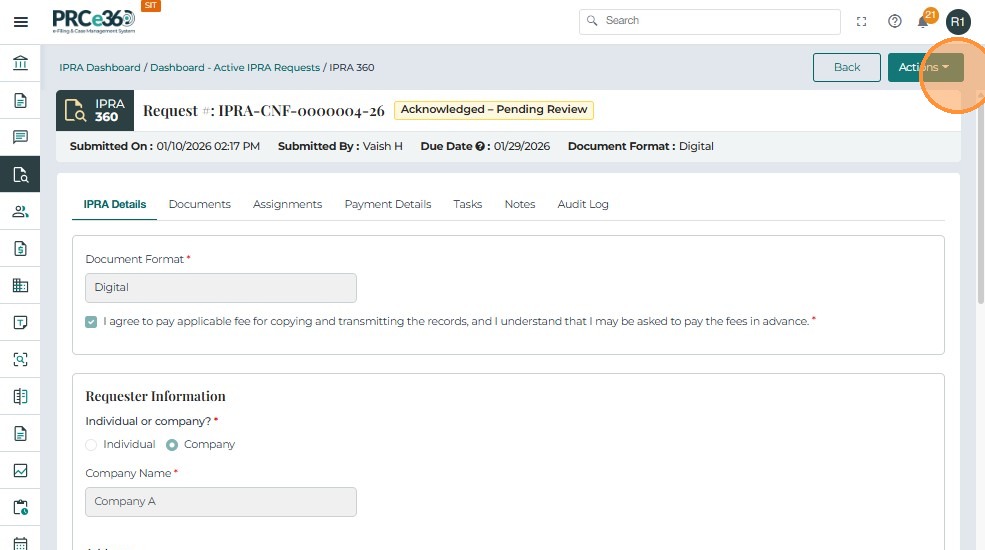
Click Actions → Broad and Burdensome.
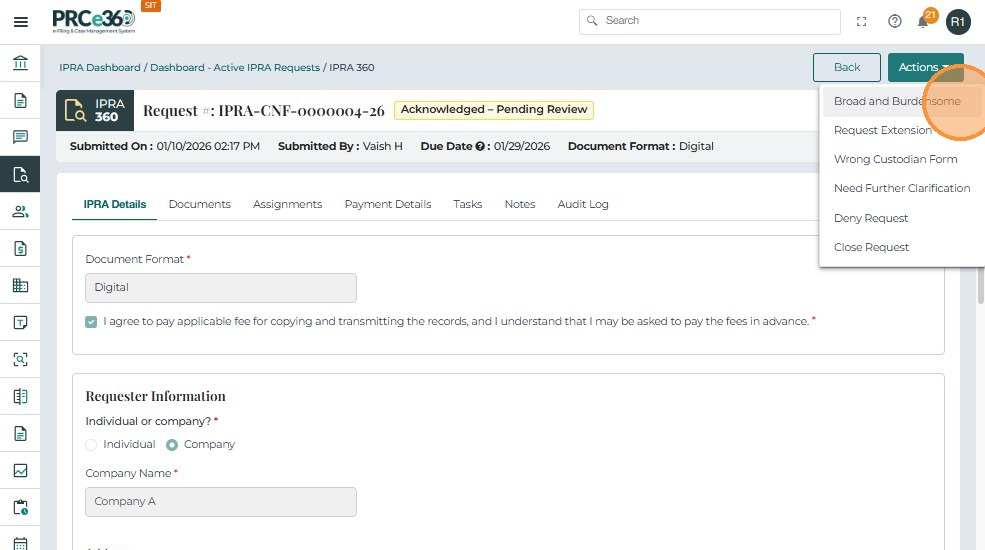
- A Broad and Burdensome form appears with fields:
| Field Name | Description |
|---|---|
| Records Custodian Name | Auto-filled with the Legal Counsel's name. |
| Records Custodian Title | Enter title (e.g., IPRA Legal Counsel). |
| Requester's Name | Auto-populated from the IPRA Details tab. |
| Request Details | Summary of the original request. |
| Explanation making the request burdensome or broad | Mandatory detailed justification. |
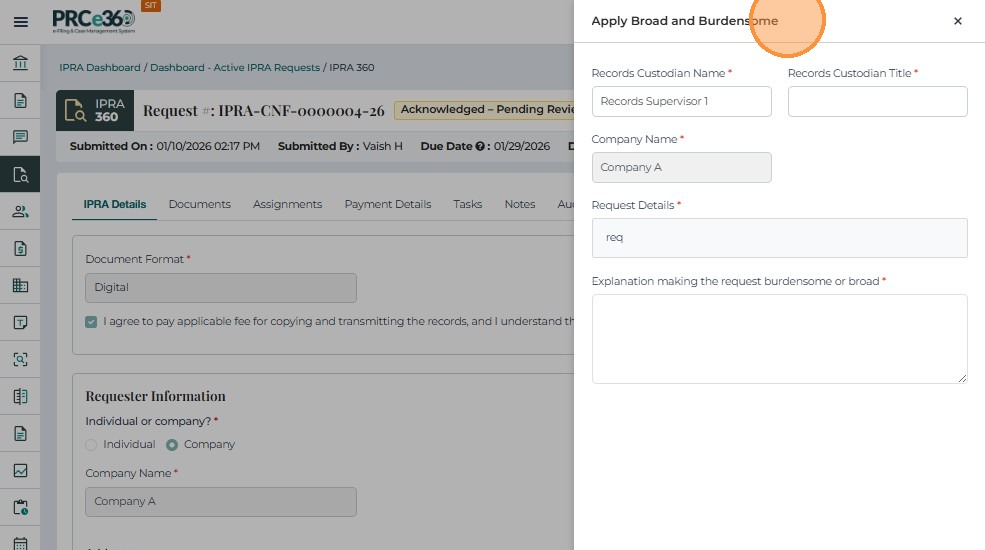
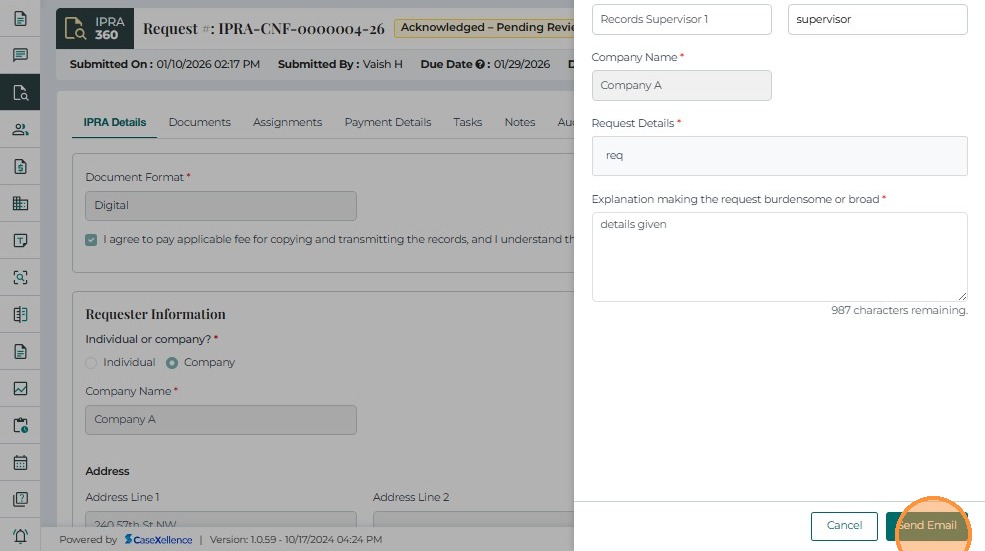
- Enter the explanation and click Send Email.
-
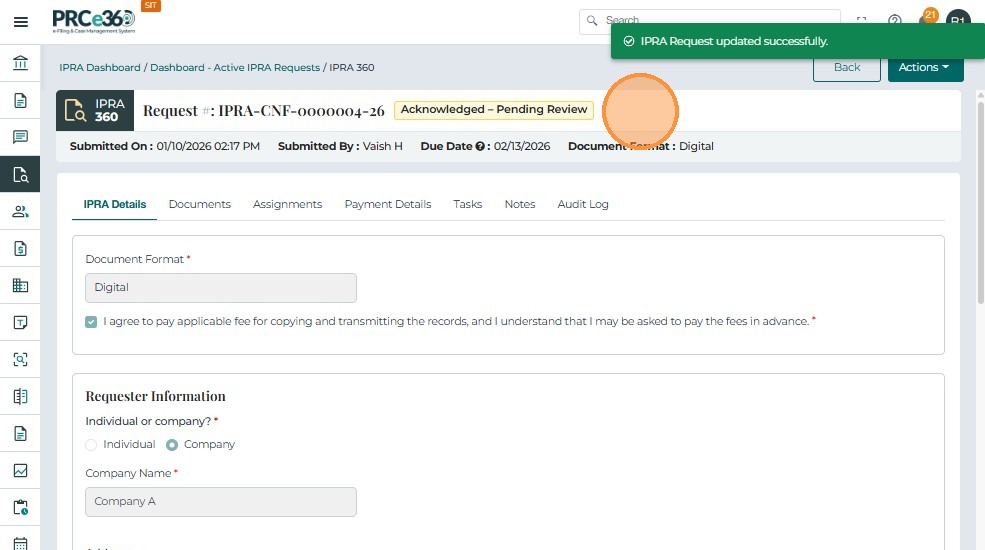
The system sends an email to the requester.
-
The request remains In Progress until clarification is provided.
Request Extension (Legal Counsel)
This option is identical in purpose to the earlier Request Extension, but specifically from Legal Counsel's workflow.
-
Click Actions → Request Extension.
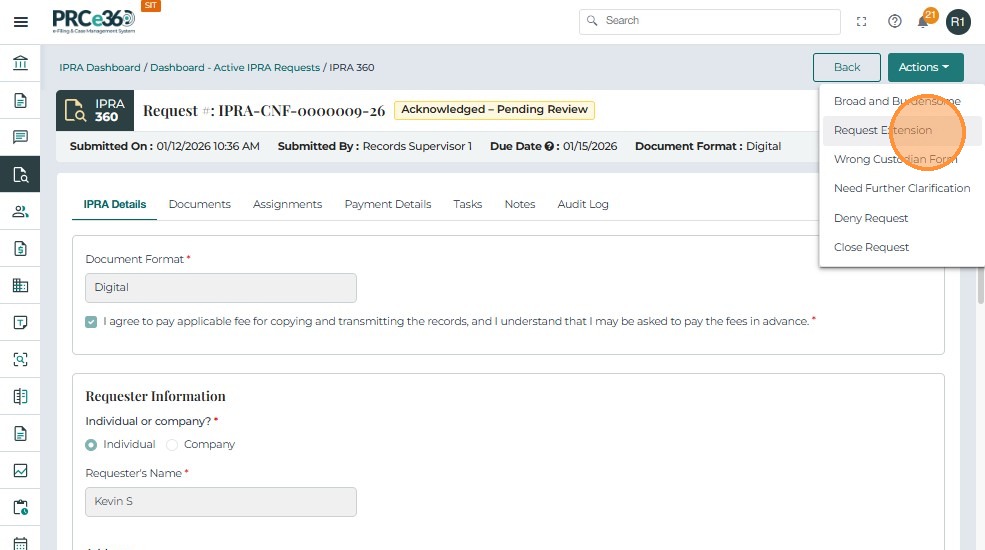
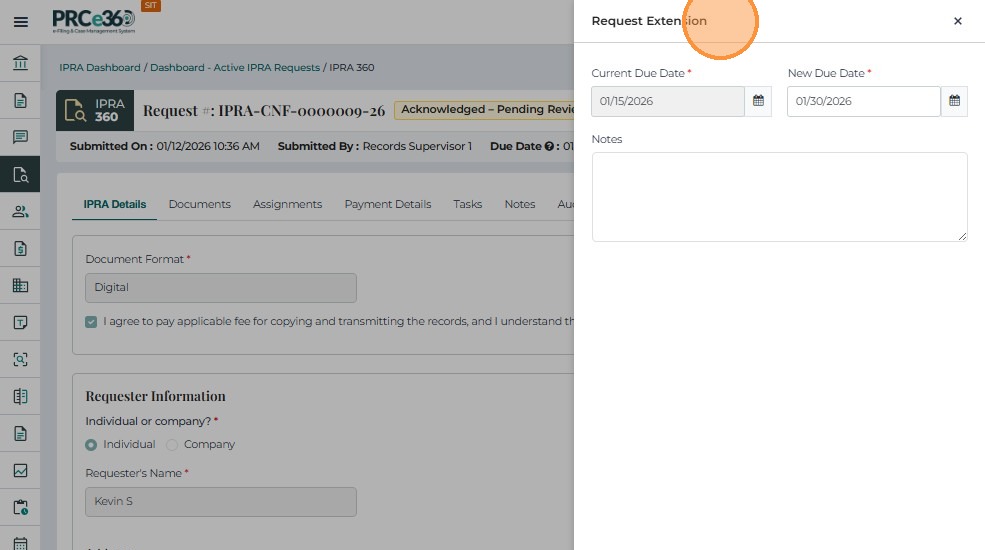
- Complete the form:
| Field Name | Description |
|---|---|
| Current Due Date | Read-only existing due date. |
| New Due Date | New due date/time (must comply with statutory limits). |
| Notes | Optional justification for the extension. |
-
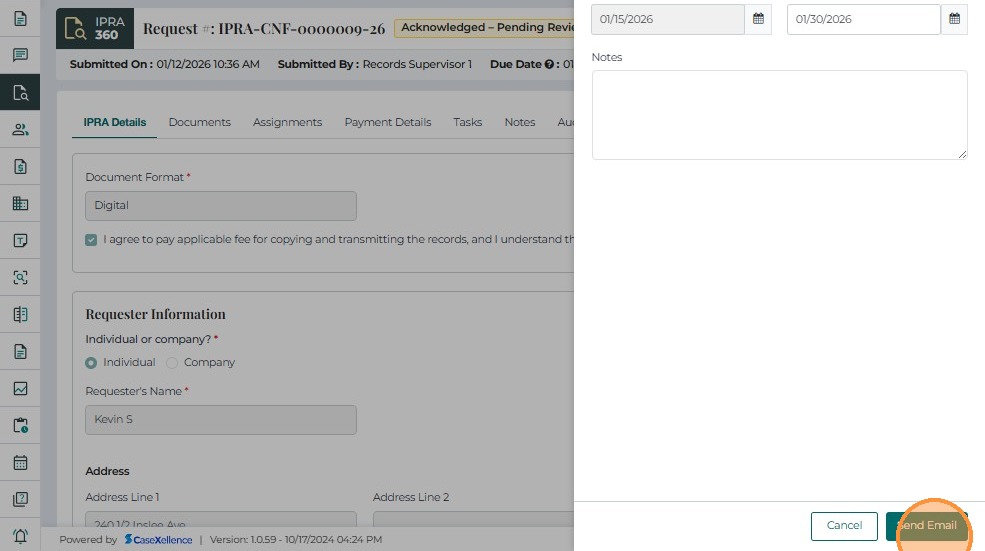
Click Submit Extension.
-
The due date updates in the IPRA Details and case header.
-
A confirmation message appears, and the action is logged.
Wrong Custodian Form
If the requested records belong to a different agency, Legal Counsel must notify the requester that NMPRC is not the correct custodian.
-
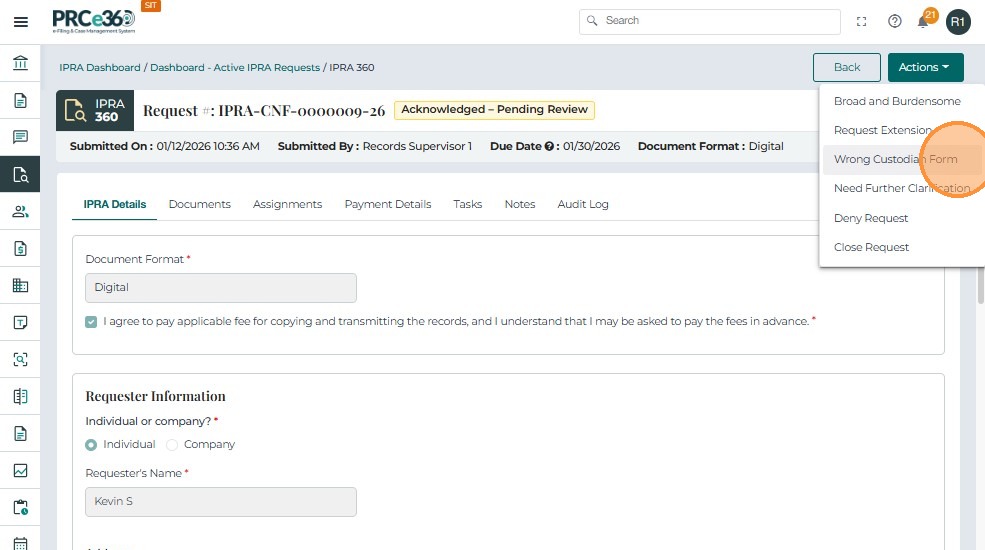
Click Actions → Wrong Custodian Form.
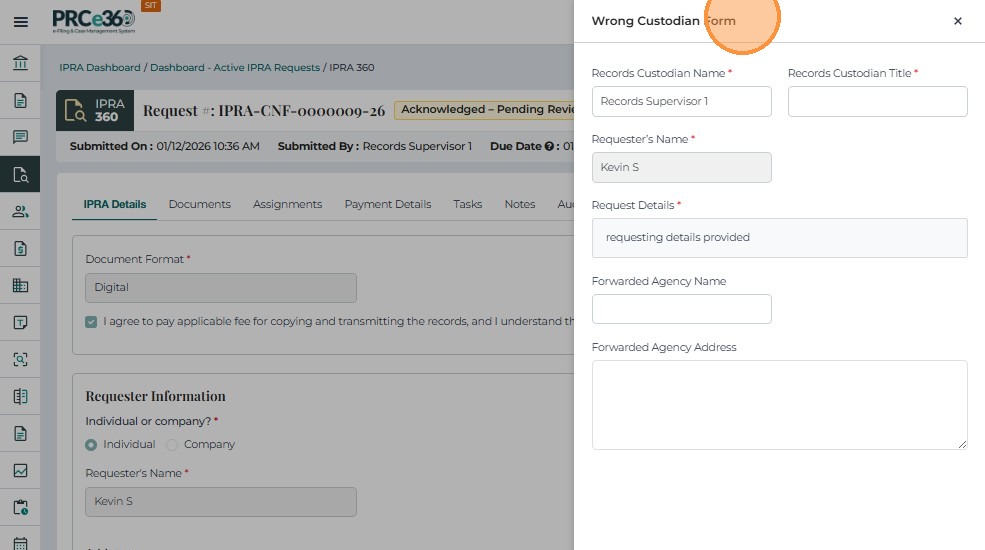
- Complete the Wrong Custodian Form:
| Field Name | Description |
|---|---|
| Records Custodian Name | Auto-filled with Legal Counsel's name. |
| Records Custodian Title | Title (e.g., IPRA Legal Counsel). |
| Requester's Name | Auto-filled from IPRA Details. |
| Request Details | Summary of the request. |
| Forwarded Agency Name | Name of agency that holds the records. |
| Forwarded Agency Address | Mailing or email address for that agency. |
-
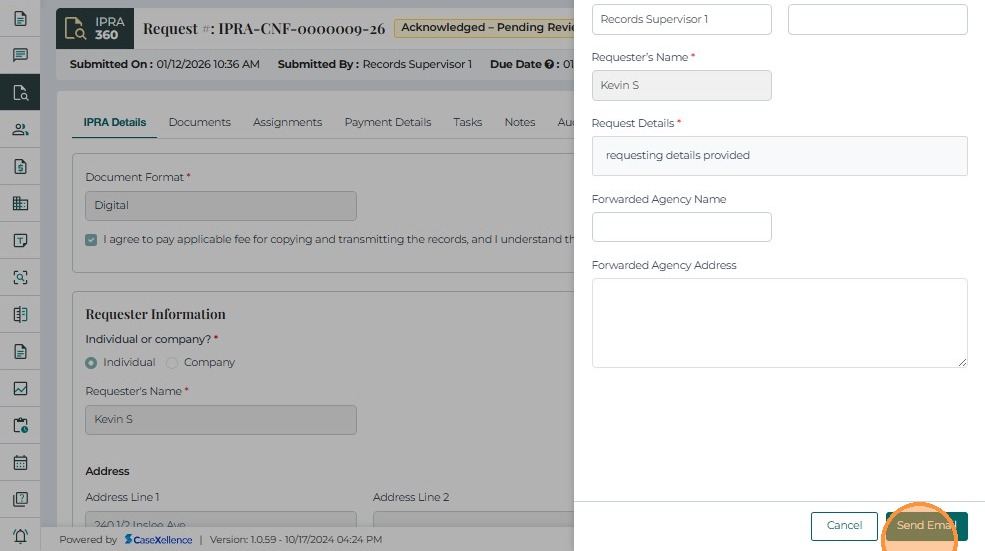
Click Send Email to notify the requester.
Need Further Clarification
Used when the request is ambiguous or lacks sufficient detail to locate records.
-
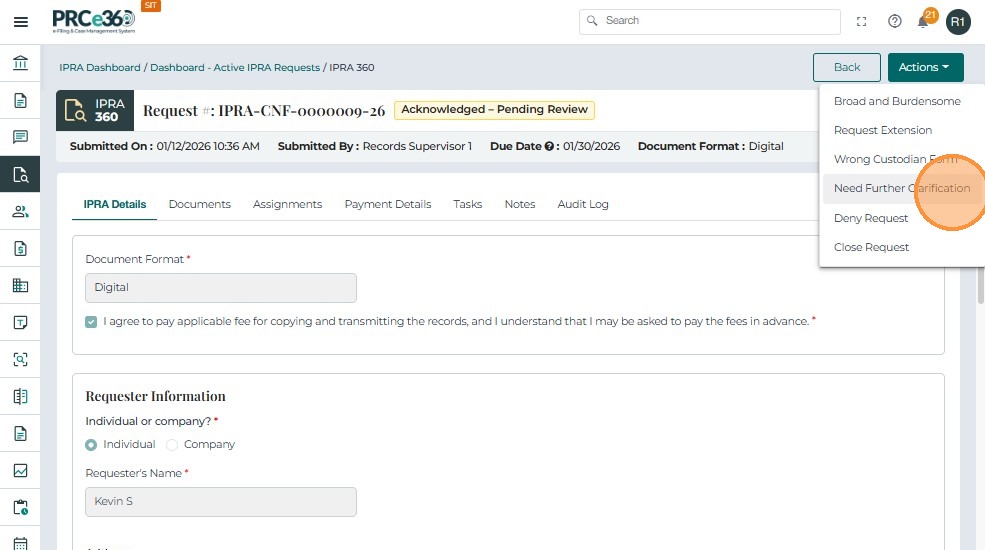
Click Actions → Need Further Clarification.
- Fill out:
| Field Name | Description |
|---|---|
| IPRA Request Details | Summary/title of the request (read-only). |
| Clarification Needed | Required field describing what information is missing or must be narrowed. |
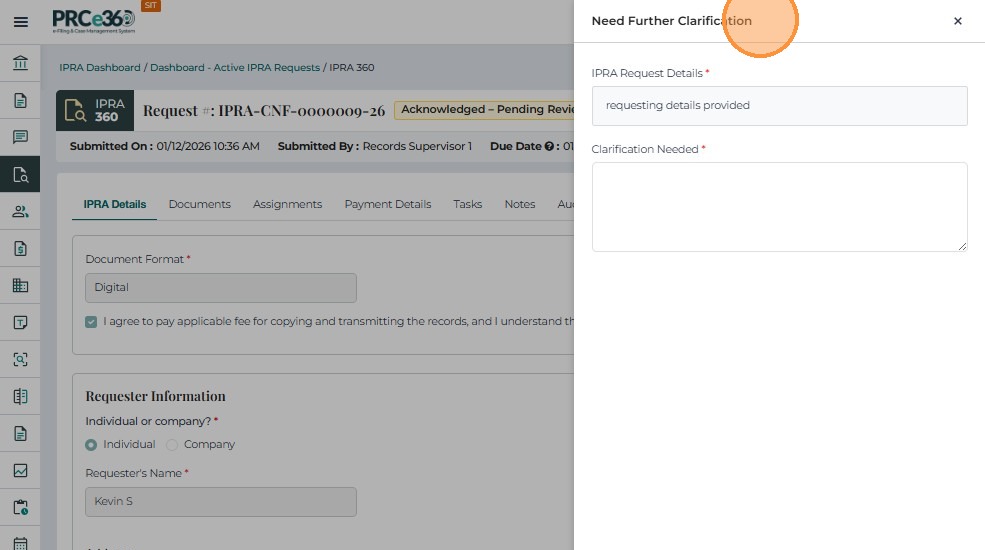
- Click Send Email.
-
The system emails the requester with clarification details.
-
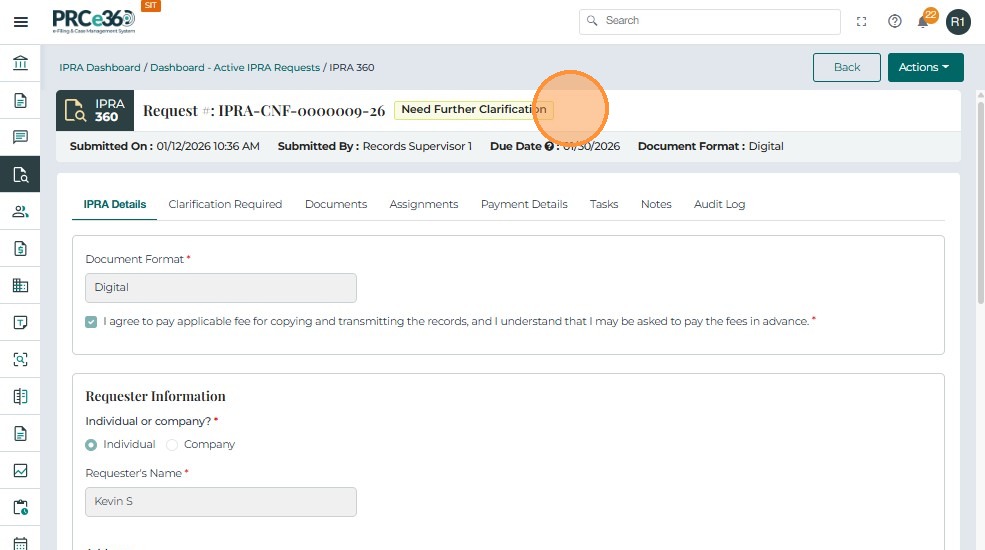
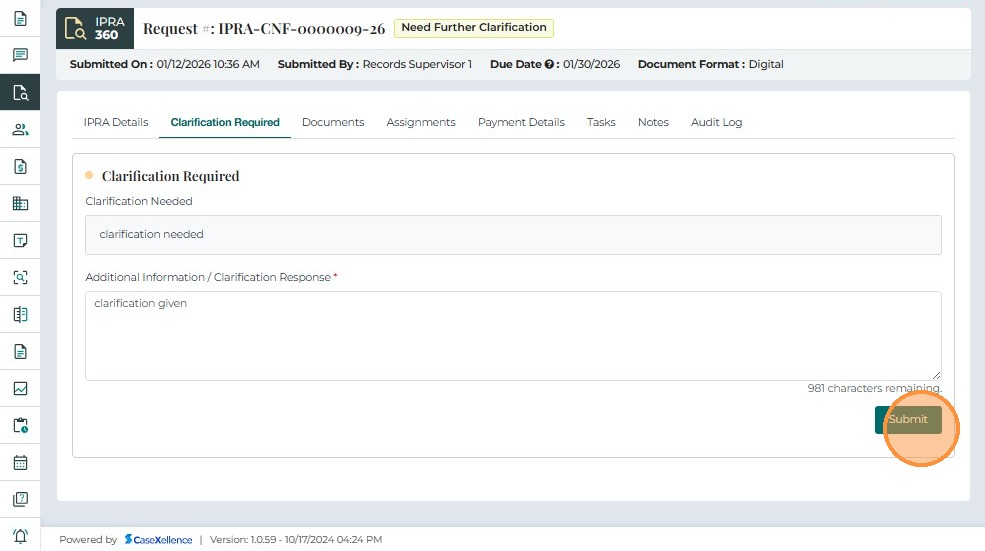
The request status changes from In Progress to Need Clarification until the requester responds.
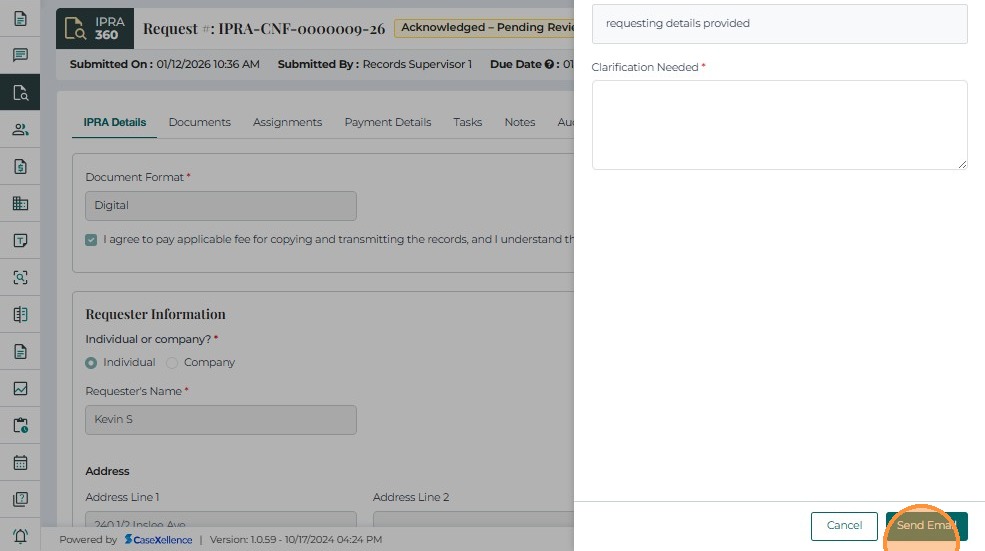
- A Green banner with the confirmation message will appear.

- The status will now change to "Need Clarification".
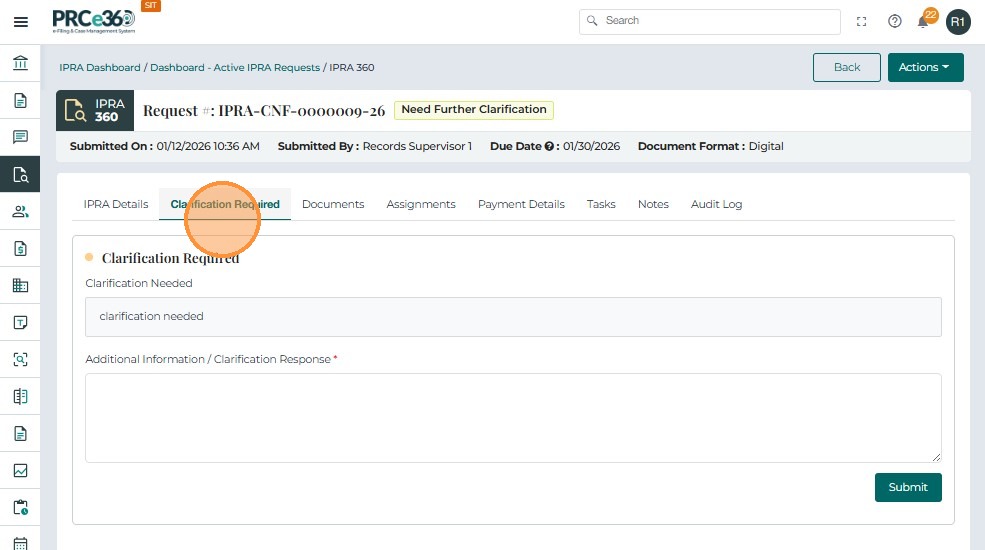
- User can provide clarification in the tab and submit.
Deny Request
This flow functions similarly to the earlier Deny Request, but specifically from Legal Counsel's perspective.
-
Click Actions → Deny Request.
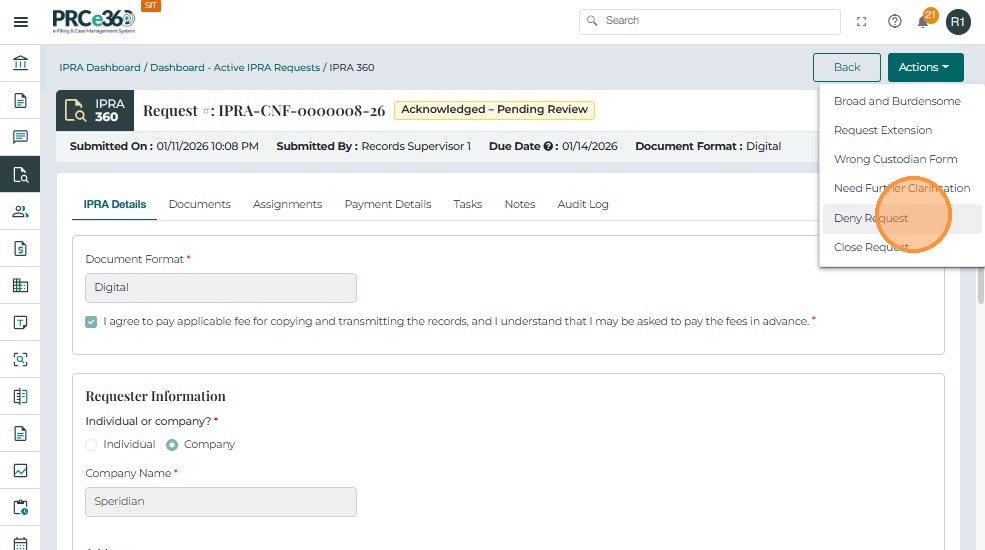
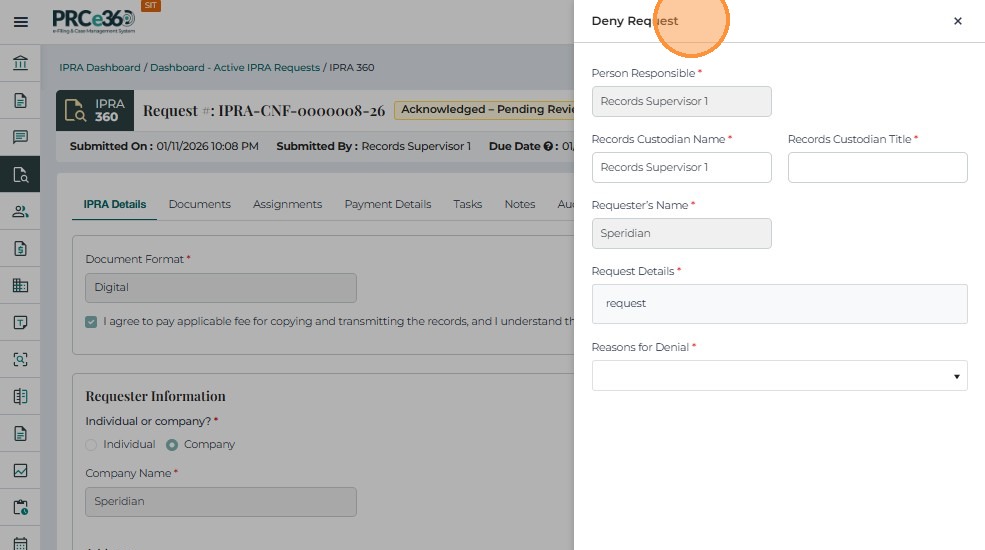
- The Deny Request window is pre-populated with case details:
| Field Name | Description |
|---|---|
| Person Responsible | Logged-in Legal Counsel. |
| Records Custodian Name | Defaulted to Legal Counsel; can be edited. |
| Records Custodian Title | Official title. |
| Requester's Name | From original request. |
| Request Details | Summary of request. |
| Reasons for Denial | Predefined denial reasons (dropdown). |
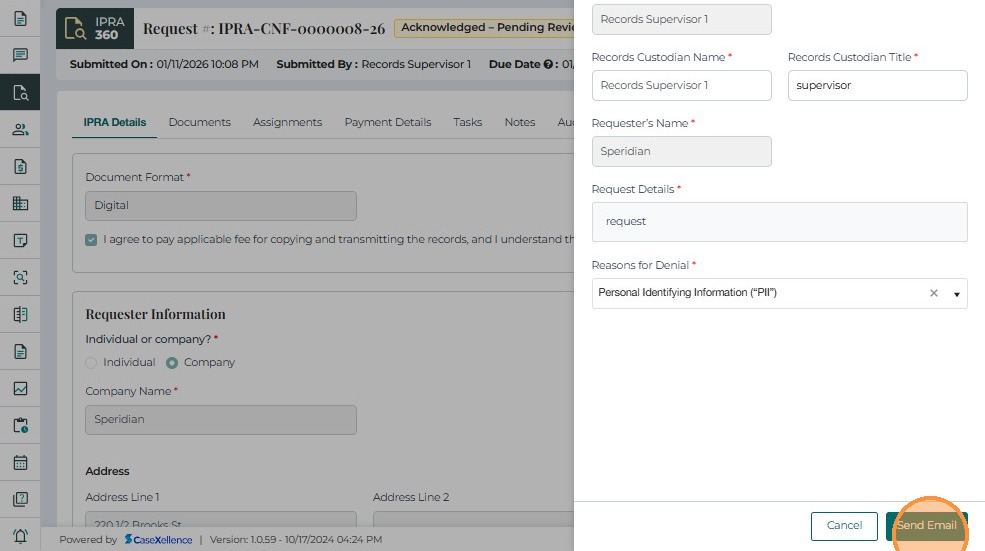
- Click Send Mail.
-
The system sends a rejection email to the requester.
-
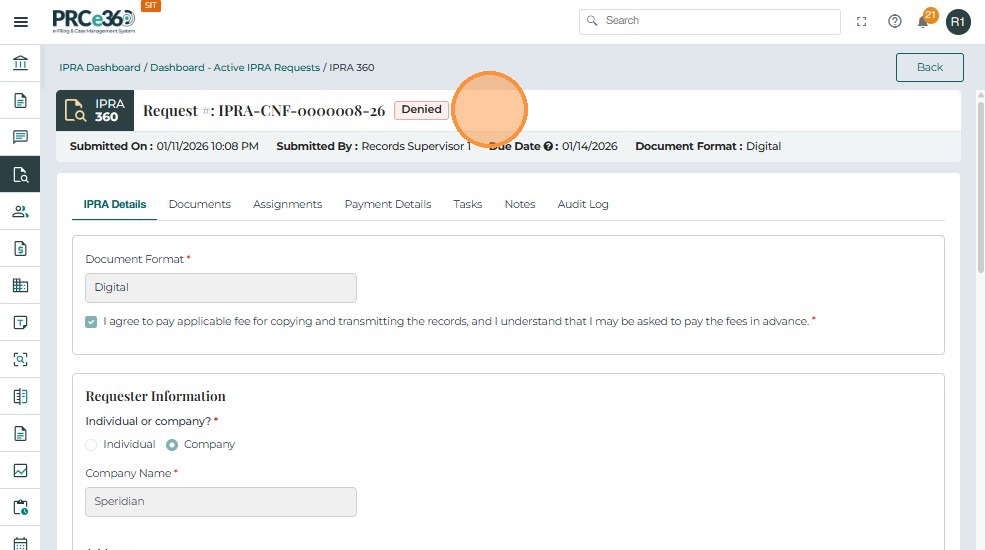
The case status updates to Denied.
Close Request
Once all actions (fulfillment, rejection, clarification, or forwarding) are complete, Legal Counsel can close the request.
-
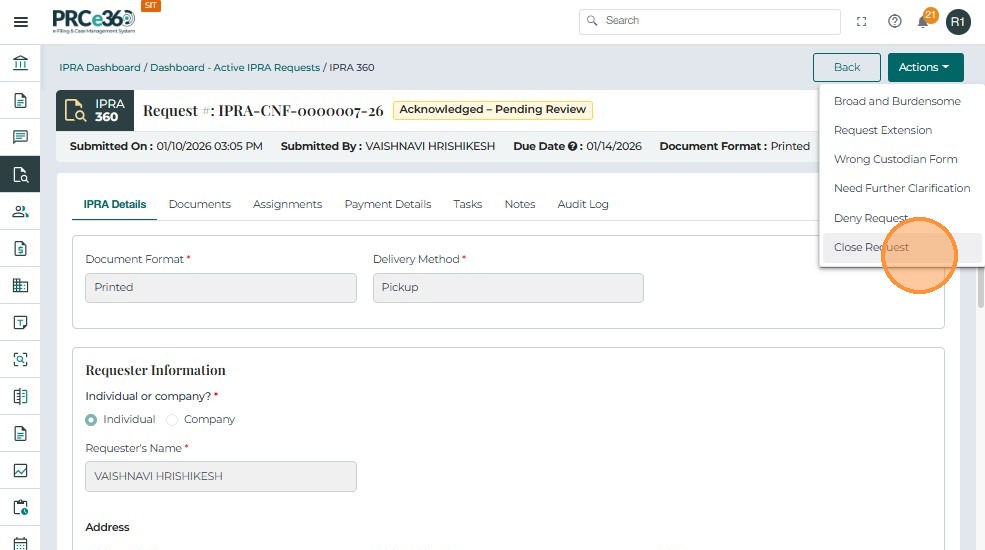
Click Actions → Close Request.
-
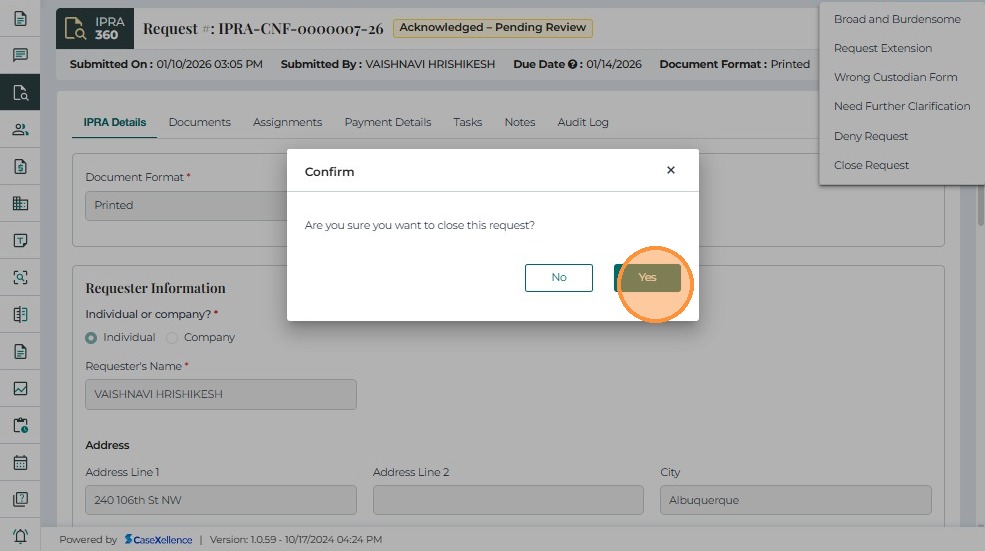
Confirm the closure in the popup dialog.
-
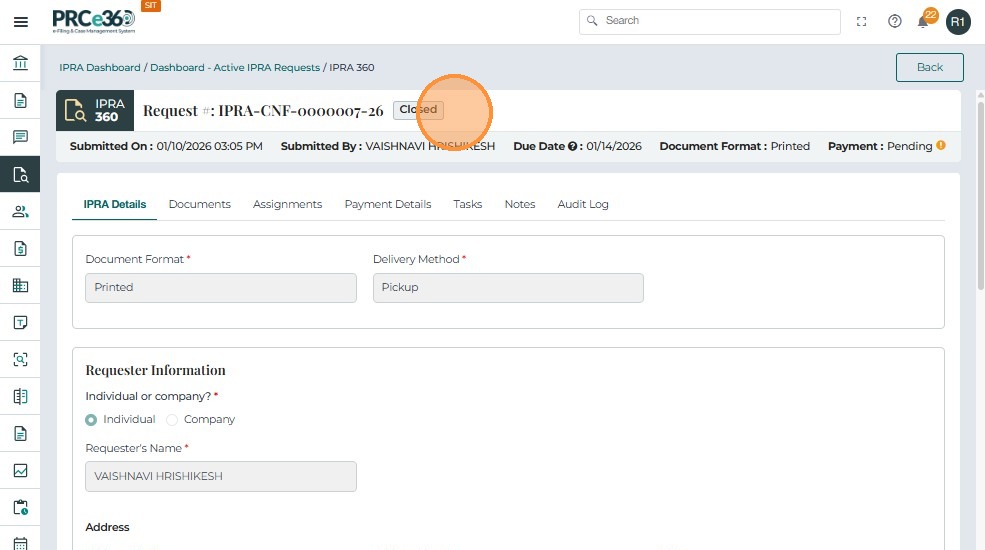
Once confirmed, the status changes to Closed, and the case becomes read-only.
Common Issues & Troubleshooting
Issue: Action button is not visible
Possible Causes:
- Your role doesn't have permission for that action
- The case status doesn't allow that action
- The case is already closed
Solution: Check your role permissions and the current case status. Some actions are only available for specific roles or statuses.
Issue: Cannot request extension
Possible Causes:
- The deadline has already passed
- Extension was already requested
- Your role doesn't have permission
Solution: Extensions must be requested before the original deadline. Contact IPRA Legal Counsel if you need assistance.
Issue: Cannot close request
Possible Causes:
- Payment has not been confirmed (for paid requests)
- Required documents are not marked as responsive
- Your role doesn't have close permissions
Solution: Ensure all requirements are met. Only IPRA Legal Counsel and Records Supervisor can close requests.
Issue: "Broad and Burdensome" action not working
Possible Causes:
- Request is already in a different status
- Your role doesn't have permission
- Required fields are missing
Solution: Verify the request status and your role permissions. Ensure all required information is provided.